
Translations
Overview
The translations feature brings multi-language support to the in-park web app. Our approach follows that of best-in-class translation tools: machine translation to quickly achieve broad coverage, with facilities to review translations, revise them, and adjust specific glossary terminology as needed.
There are four parts to the feature. The rest of this page covers each in turn:
Languages - Turn languages on; set what guests see them called
Translations tab - Draft, review, and save one record's translation
Review queue - See park-wide what's missing or out of date
Bulk jobs - Machine-translate many records at once, in the background
How to Create a New Language
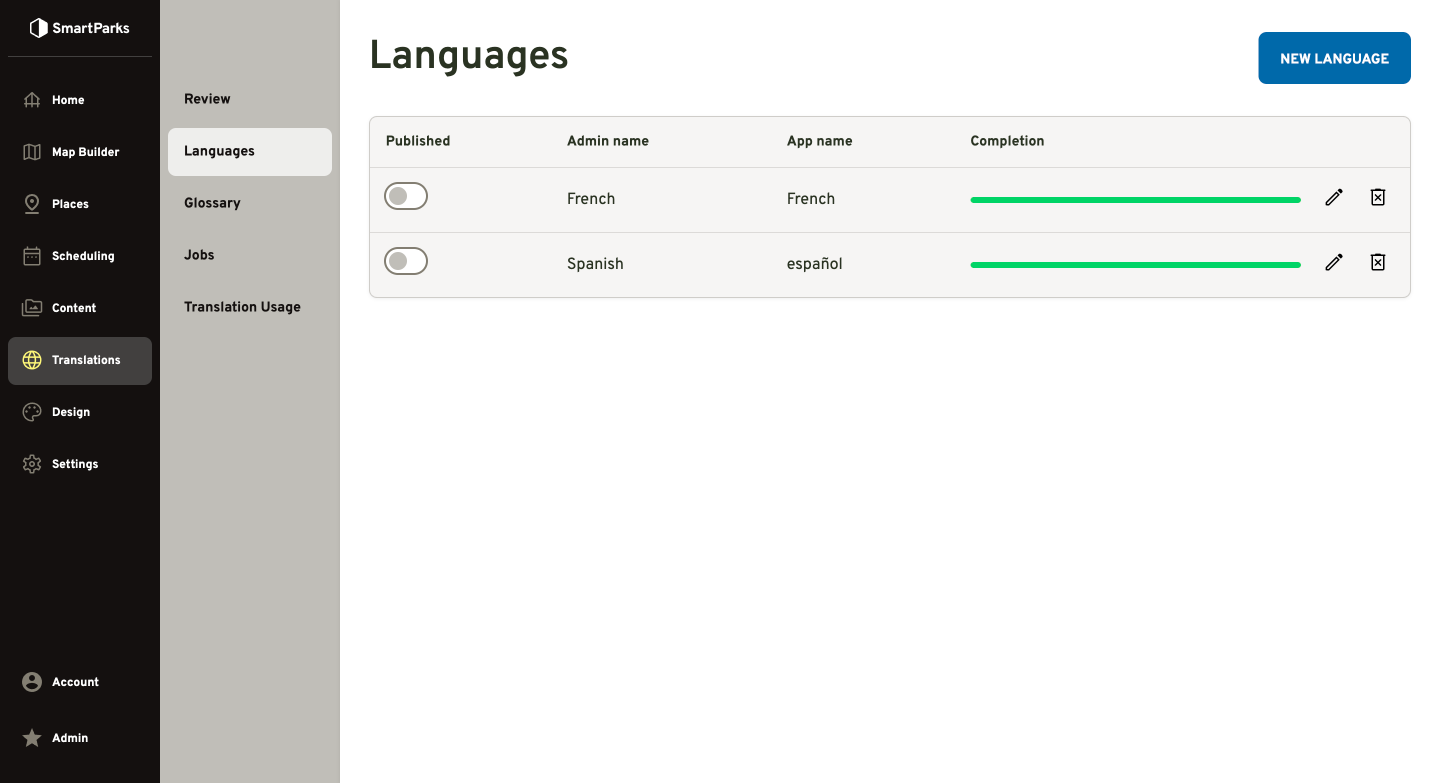
Go to Translations > Languages in the main navigation
Click the New Language Button in the top right
How to Edit Languages
The fields for languages include:
Language - Pick from the catalog (Spanish, French, German, Simplified Chinese, Japanese, Korean, Portuguese, Vietnamese, …). Already-added languages are greyed out. Picking one auto-fills the two name fields below, which you can edit.
Admin name - What staff see it called inside Centcom (e.g. "Spanish").
App name - What guests see in the app's language picker. By convention, write it in the language's own script — "Español", "中文", "Tiếng Việt" — because a Spanish speaker is looking for "Español", not "Spanish".
Locale (optional) - A regional dialect when it matters: Latin American vs. Castilian Spanish, Brazil vs. Portugal, Canada vs. France. It's passed to the translation engine. Blank means no regional preference. Centcom suggests a sensible default from your park's timezone.
Published (toggle) - The guest on/off switch. Leave it off to build up a language's translations privately; turn it on when the language is ready to appear in the app's picker.
Languages start unpublished. That lets you build up coverage before releasing a language to guests. Once you save, the Languages list shows each one's publish state and a small completion bar so you can see how far along each is.
Preview before you publish
See the app in a new language before guests do. Because a language stays unpublished until you decide otherwise, you'll want to check how the app actually looks in it first. Visit your park's web app and add /preview to the address.
Preview renders the live app inside a phone mockup with a Language selector that includes your unpublished languages — so you can walk through the guest experience in a new language ahead of releasing it. Switch the selector and the preview reloads in that language.
The same screen has a few aids for checking time- and place-sensitive content: jump to a different time of day, set your location manually, and toggle map waypoints. None of these change the live app — they only affect what you see in preview.
Find what needs translating
Now that you've created a new language, you'll probably notice its completion percentage sitting at zero. To review the status of every translation, head to the review queue.
The review queue (/translations) is your site-wide view of translation health. Within it you'll find translations in a variety of states:
Up to date (Green) - Translation exists; the English hasn't changed sinceGreen
Out of date (Orange) - Translation exists, but the English was edited after it was translated
Missing (Red) - No translation yet for this language
In progress - A bulk job is translating it right nowShown while the job runs
"Out of date" is the one you'll see most. Right now all of your translations are missing, but as content changes over time, the out-of-date state becomes the common one. We keep a fingerprint of the English behind each translation, so when you edit an exhibit's English description, its Spanish translation doesn't quietly stay wrong — it flips to Out of date. That makes it easy to spot which records need attention.
Click any record's name to jump straight to its Translations tab. When the list is long, you don't have to clear it one record at a time — the Bulk update button (next section) handles everything missing or stale at once.
Bulk-translate
Bulk update machine-translates everything that's missing or out of date — across every language, in the background.
Before it commits, a dialog shows you:
how many translations will be created or refreshed,
a character estimate of the work, and
that estimate against your monthly quota — with a warning and a disabled Start button if it would exceed your allowance.
Click Start Translation and the work moves to a background worker. You can close the dialog and keep using Centcom; the job keeps running, and a progress bar shows "N of M completed."
Every run is recorded under Translations → Jobs (/translations/jobs), so you have a history. Open a job to see its status and total characters translated, a row for each record-and-language it touched, and — for anything that failed or came back questionable — the details: an error message, or a note from the automatic quality check (e.g. "this translation dropped a sentence") so you know what to look at.
Translate a specific record
So far we've talked about translations across your entire site, but not what translating a single record looks like.
Open almost any content record — a place, event, guide, animal, page — and you'll see a Translations tab next to the main fields. It works the same everywhere:
Add language — pick a language you haven't translated this record into yet. A new section appears with a field for each translatable piece (a place's title and description, an animal's name and description, and so on).
Translate — fills those fields with a machine draft. You can also just type the translation yourself; the draft is a starting point, not a requirement.
Review and save — read the draft, fix anything off, and save.
Re-translate fresh (↻) — if a translation already exists and you want to start over from a clean machine draft, ignoring the previous wording, use the refresh button.
A field flagged Out of date means the English changed after it was translated, so you know exactly what to re-check.
Working with maps
A park's map is one of its most language-sensitive surfaces, and translation reaches it two ways:
Every map label is individually translatable.
Labels with no text inherit from their place — they show the linked place's title text and its translations.
Quotas
Our translation service uses a two-stage pipeline that draws on multiple translation providers to ensure high-quality results. That introduces a few limitations worth knowing:
One million characters per month. That's the cap on machine translation per park.
It counts source characters, and resets monthly. The meter measures the English you translate from, and starts fresh on the 1st of each month.
You'll get a heads-up near the limit. The Translate buttons show a "% remaining" hint as you approach it.
Hand-typing always works. When the allowance is used up, machine translation pauses until the reset — but typing translations by hand is never blocked, and nothing already translated is affected.
Bulk jobs check first. They estimate their character cost against the quota before you start, and won't begin a run that would exceed it.
Bumping into the cap often? Let us know. In our experience this is most likely when adding several new languages for the first time, and we're happy to reset or extend the quota in such cases.